
Salesforce: How to include Related Object Fields in Contact responses
Use pass-through parameters and custom mappings to include related object fields in contact responses without making separate API calls.
Overview
For related Salesforce fields (e.g., Account.Name, Account.Id), use:
Pass-through to include the field in the SOQL query
Custom mapping with a JSON path to extract the nested field
Step-by-Step Guide
Step 1: Create a Custom Mapping
Go to your Apideck dashboard > Configuration
Navigate to Custom Mappings
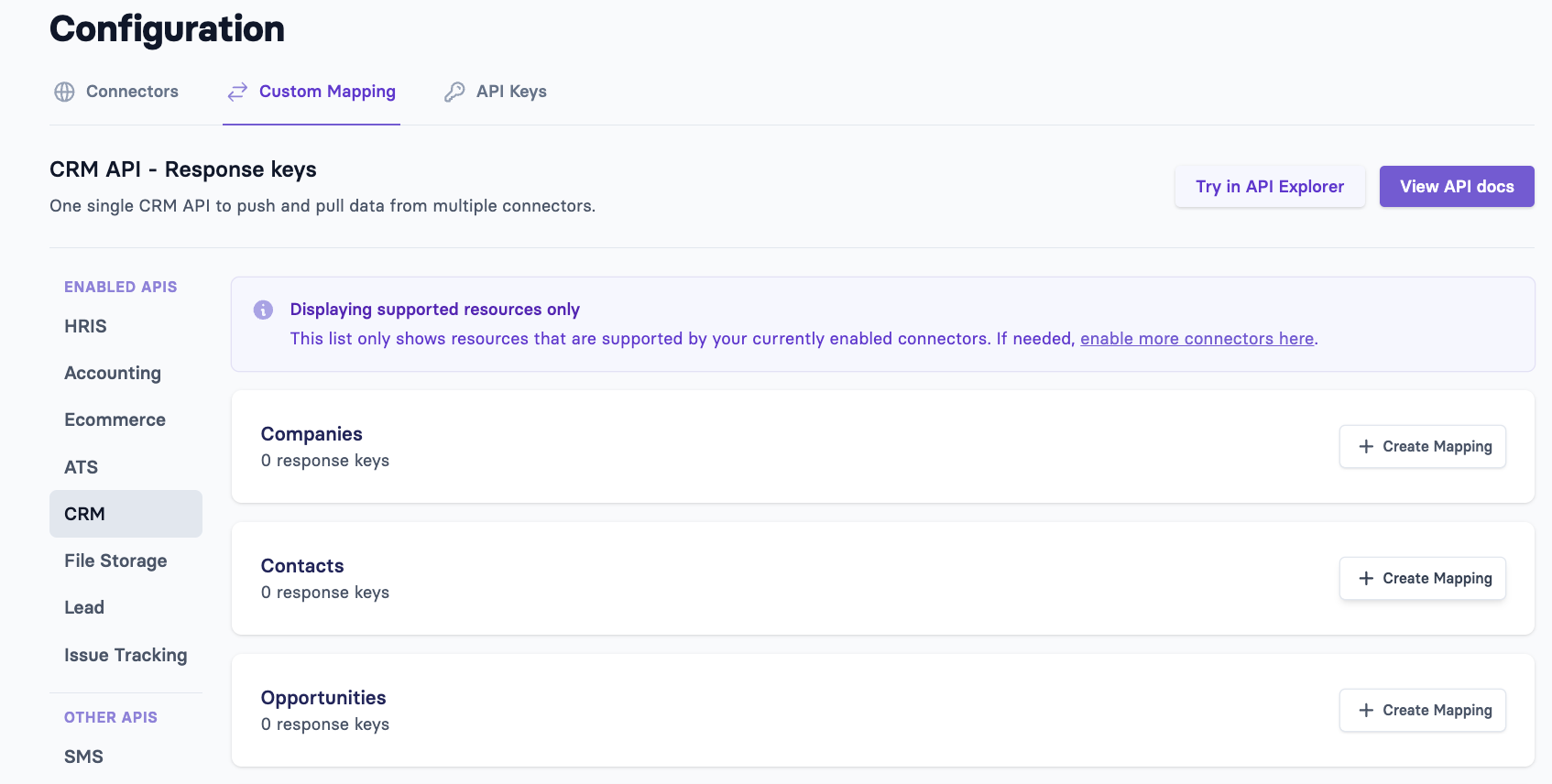
Click on Create Mapping next to the Contacts resource under CRM
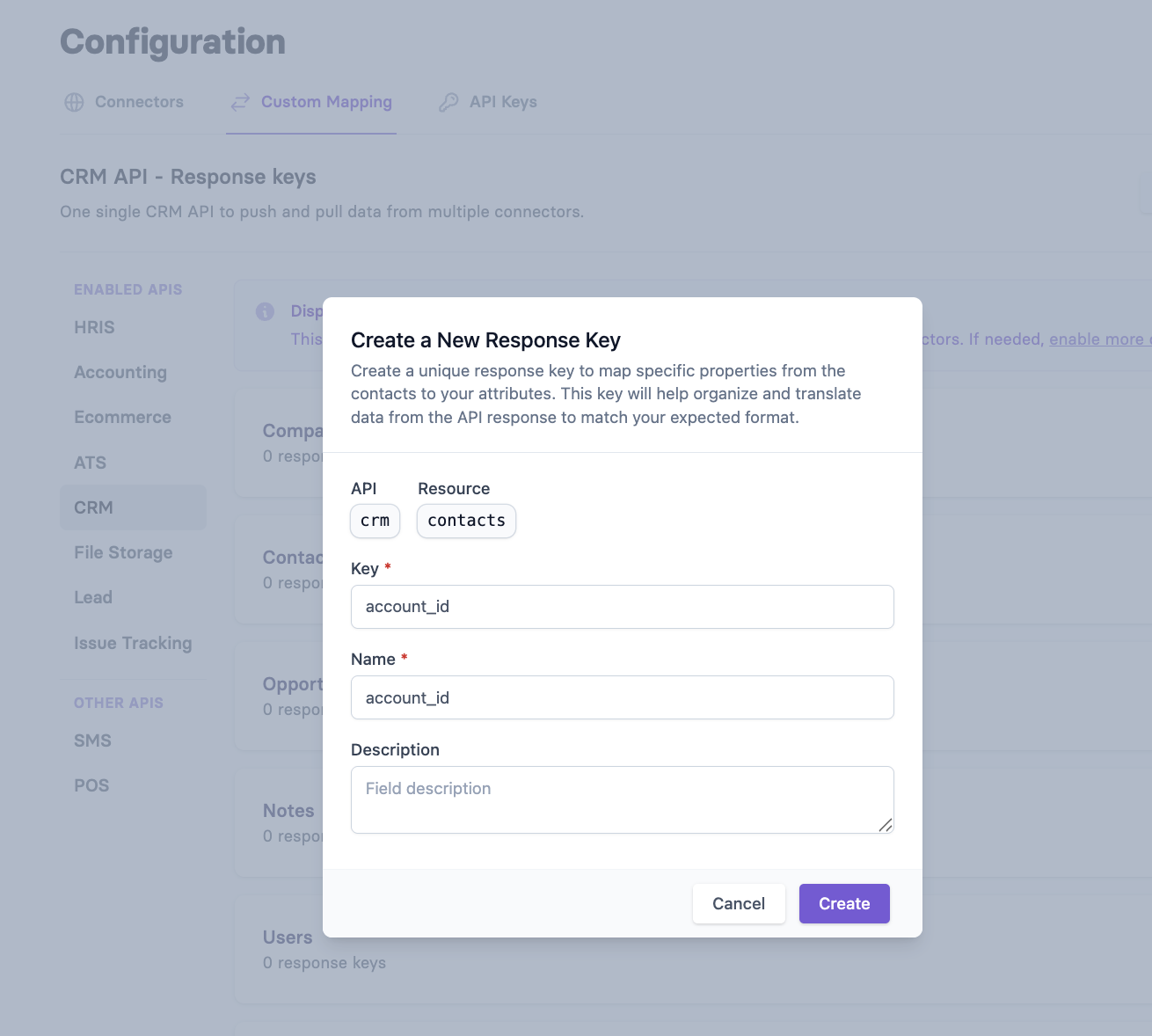
Create a unique response key and name that links contact data fields from the API response to your own system’s attributes
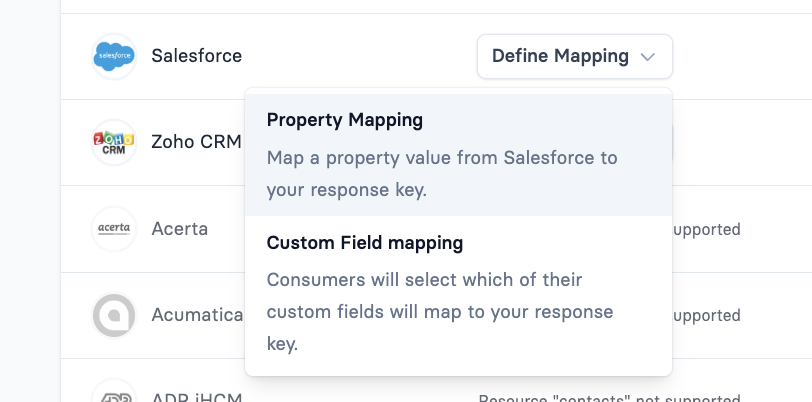
Once you've created the response key, click on it and this will allow you set the mapping for a specific connector

Select Salesforce and Property Mapping from the list
Go to Advanced and add $.Account.Id or $.Account.Name (use JSON path notation)
Note: Related object fields won't appear in the dropdown under "Select". This is why you need to enter the JSON path manually in "Advanced".
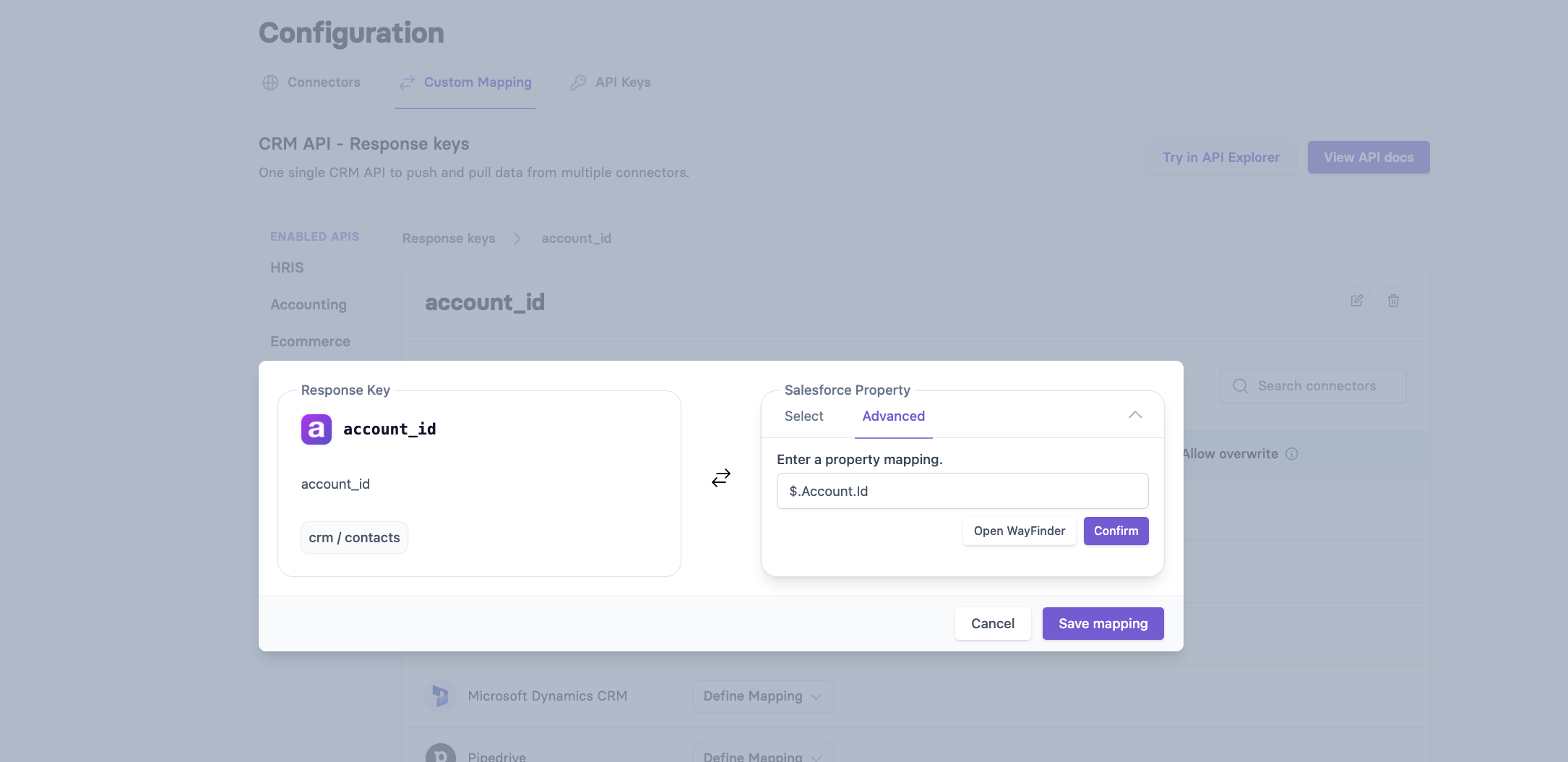
Save the mapping
Step 2: Use Pass-through in Your API Request
Include the related fields that you have set up previously in your pass-through parameters:
URL Example: https://unify.apideck.com/crm/contacts?pass_through[fields]=Id,FirstName,LastName,Email,Account.Name, Account.Id
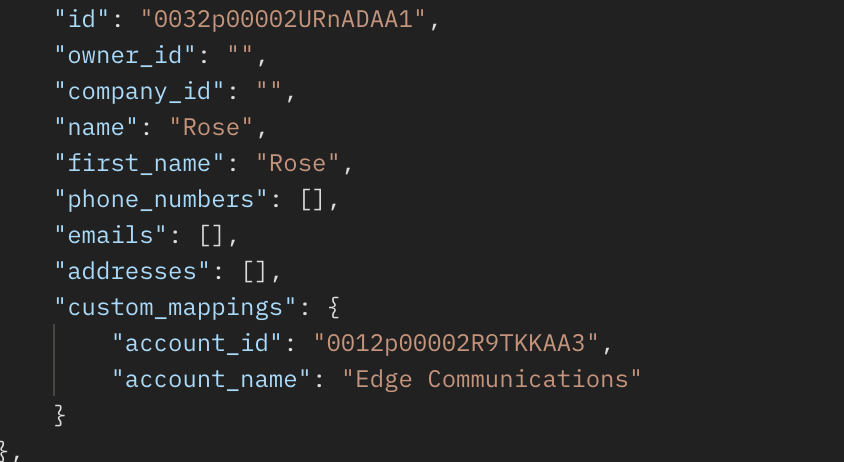
The response contains account_id and account_name
Custom Filtering with Related Fields
Use pass-through to filter by related object fields: https://unify.apideck.com/crm/contacts?pass_through[where]=WHERE Account.Name = 'Edge Communications'
It will return only contacts under this Account.Name