
Using JSON Path for a Field mapping
In other articles, we showcase how to set up and configure a Field Mapping:
In this guide, we explain the different options to map the field values.
Mapping modes
The App Owner and Consumer can use 2 ways to define a mapping:
UI mode: This allows the user to navigate through the properties tree from the integration raw response. The selected field gets translated into a JSON path definition.
Advanced mode: This allows the user to manually enter or adapt a JSON path definition or use a JSON example to select the property.
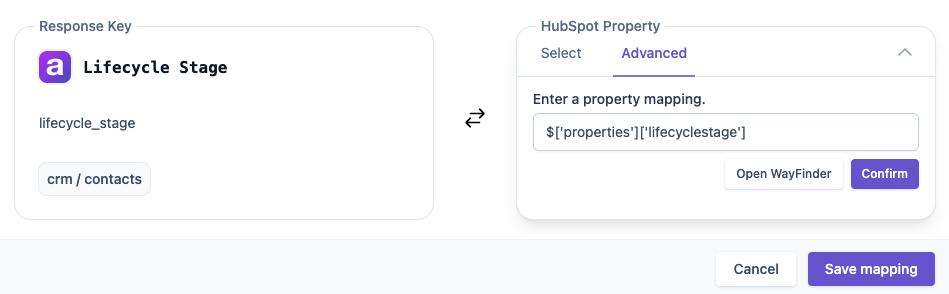
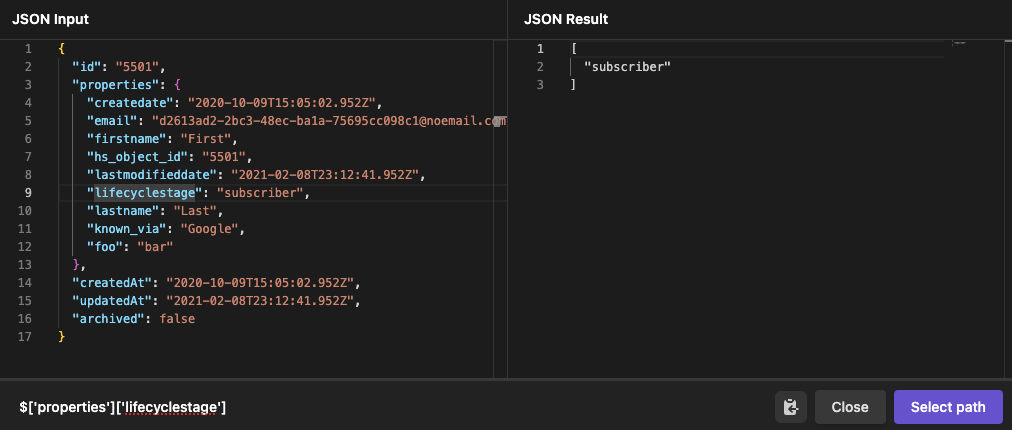

Both modes will result in a JSON path definition that will be used when returning an Apideck response.
If Unify makes multiple calls to the integration, you also get the option to select for which request you wish to extract the property. Selecting a request changes the available properties in the simple UI and the advanced tab.

Advanced mapping with JSON Path
The field mapping is based on the JSON path syntax, which can handle simple & complex query expressions with deep nesting and arrays.
💡 JSONPath is a query language for JSON, similar to XPath for XML.
It allows you to select and extract data from a JSON document. You can use a JSONPath expression to traverse the path to an element in the JSON structure.
JSONPath allows you to query JSON objects and drill into nested structures to extract specific values. This is useful when:
The property you need is nested or requires traversal of the JSON structure.
The property name is dynamic or conditional based on another value.
To define an advanced custom mapping, you can toggle to “Advanced mode” and enter a JSON Path query.
$.phones[?(@.type=='mobile')].phoneThis would extract the mobile phone number by filtering for the phone number object with the type mobile.
In Advanced mode, you can also use WayFinder to build the path by clicking through a JSON example.
WayFinder allows you to click through your JSON response to compose a valid JSONPath dynamically.
Some more examples of JSON Path queries:
Simple JSON Path:
$['firstWorkingDay']
⇒ returns a simple valueAdvanced JSON Path: Deeply nested property:
$['env:Envelope']['env:Body']['wd:Get_Workers_Response']['wd:Response_Data']['wd:Worker']['wd:Worker_Data']['wd:Personal_Data']['wd:Personal_Information_Data']['wd:Personal_Information_For_Country_Data']['wd:Country_Reference']⇒ returns a simple value
Advanced JSON Path: using * to iterate over array items:
$['Invoice']['TxnTaxDetail']['TaxLine'][*]['TaxLineDetail']['TaxPercent']⇒ Returns values from an array of valuesAdvanced JSON Path: Using conditionals:
$['env:Envelope']['env:Body']['wd:Get_Workers_Response']['wd:Response_Data']['wd:Worker']['wd:Worker_Data']['wd:Employment_Data']['wd:Worker_Job_Data']['wd:Position_Data']['wd:Job_Profile_Summary_Data']['wd:Job_Family_Reference']['wd:ID'][?(@['_attributes']['wd:type'] == 'Job_Family_ID')]['_text']⇒ Returns the value from an array of objects, where the object property matches a certain “type”
How the mapped value is returned
The value appears in the response under
custom_mappings, using the key of your field mapping. For example:"custom_mappings": { "employee_badge": "B-1042" }.Field mappings are read-only. They add values to responses from read operations (list and get). They don't change what is sent when you create or update a record.
The JSONPath runs against the raw response from the provider for the request you selected, not against the Apideck unified response. To see that raw response, add
raw=trueto your request.On list operations, the expression is evaluated for each record separately, so every record gets its own value.
Tips for writing expressions
Keys with spaces, colons or dashes need bracket notation:
$['Custom Fields']['Badge Number'],$['wd:Worker_Data'].One value vs a list: if a path matches more than one value, a simple path returns the first match. Use
[*]when you want all matches returned as a list.Filters pick an item from a list by one of its properties:
$.phones[?(@.type=='mobile')].phone.Test your expression on the raw response first, for example with an online JSONPath evaluator, before saving the mapping.
Troubleshooting
Your mapped value is missing:
custom_mappingsisn't in the response, or your key isn't in it. The path doesn't match anything in the raw response for that record. Check upper and lower case and the exact key names, and confirm the field has a value for that record (many providers leave empty fields out of the response).The value is in the wrong request: if Apideck makes several calls to the provider, make sure you selected the request that actually contains the field.
Field Mapping isn't available at all: Field Mapping isn't included on the Launch plan, and on Launch
custom_mappingsis left out of responses. See pricing or contact Apideck support.
More detail is in the Field Mapping guide in our developer docs.
Contact Apideck support through the Customer Portal (the Requests link at the top of this help center), your Slack channel with us, or support@apideck.com if a mapping doesn't return what you expect.