
Ecosystem: exporting your listings
You can get your listings out of Apideck Ecosystem in two ways: a quick CSV from the dashboard, or the full content through the Ecosystem API.
CSV export from the dashboard
Go to Ecosystem → Listings and click the download icon (Download as CSV) above the list.
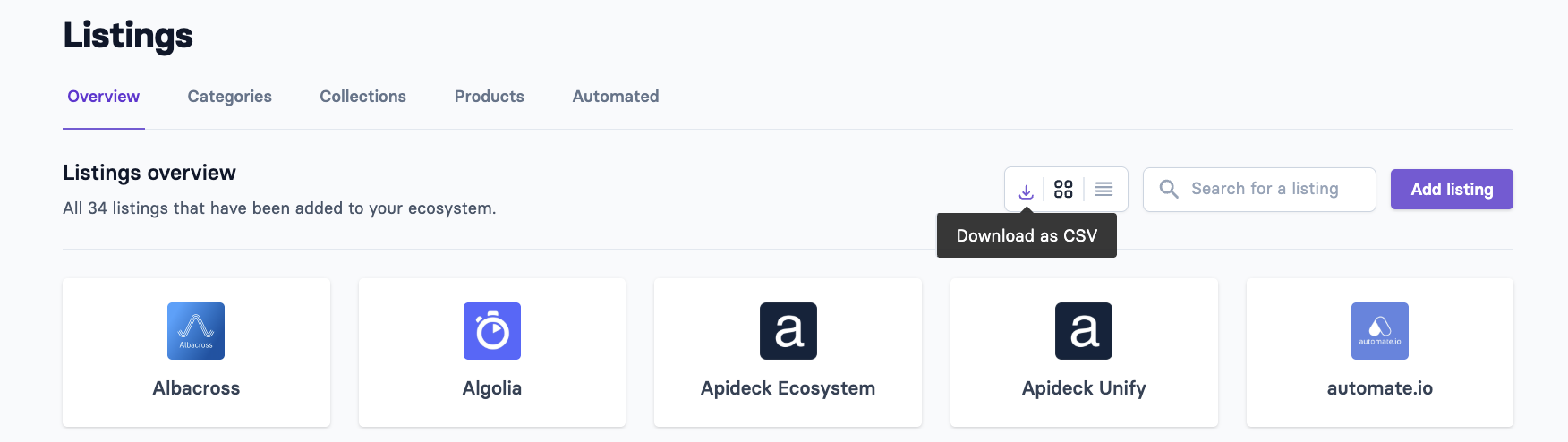
The CSV includes, for each listing:
Column | |
|---|---|
ID and slug | |
Name | |
Published | Yes / No |
Created at, Published at | |
Logo | URL of the logo image |
It doesn't include the listing content: descriptions, taglines, features, pricing, categories, links, screenshots and translations aren't in the CSV. The export contains up to 1,000 listings.
Full content through the Ecosystem API
To get the complete content, including descriptions, features, pricing, categories, screenshots and translations, use the Ecosystem API:
List listings:
GET /ecosystems/{ecosystem_id}/listings(paginated)Get one listing:
GET /ecosystems/{ecosystem_id}/listings/{id}
This is also the way to back up your content, or to feed it into another tool.
Importing or bulk-updating listings
There's no import, and the Ecosystem API is read-only. Listings are created and edited in the dashboard, or by your partners in the partner portal. If you're planning a large content update across many listings, contact Apideck support through the Customer Portal (the Requests link at the top of this help center), your Slack channel with us, or support@apideck.com to discuss the options.