
Ecosystem: changes aren't showing on the live site
You changed a listing, your template or your logo, but the public ecosystem still shows the old version. Here's what to check.
1. Bypass the cached copy
Your changes are saved immediately, but your browser, or the network delivering the page, can show an older copy for a short while.
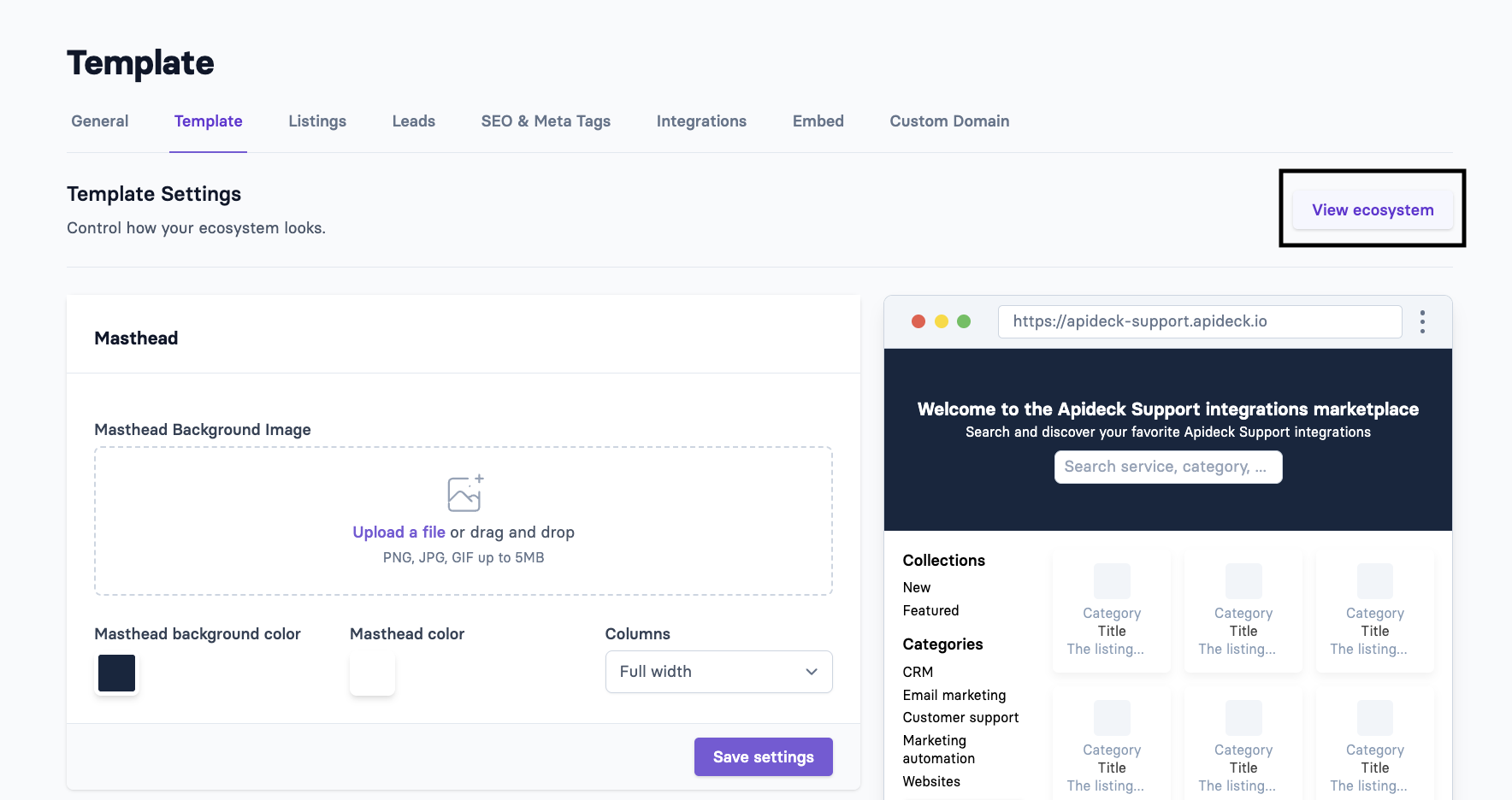
Open the site with the View ecosystem button in Settings → Template. It always loads a fresh copy.
Or do a hard refresh (Ctrl+Shift+R, or Cmd+Shift+R on a Mac), or open the page in a private window.
2. Check the language
If your ecosystem has several languages, every language has its own version of a listing's texts.
Make sure you edited the text in the language you're viewing.
Keep English enabled in Settings → Locales. Missing translations fall back to English, so without it, outdated text can stay visible.
If an old text keeps showing, save the listing again in each language.
See Ecosystem: offering your marketplace in multiple languages.
3. Check that the listing is published
Unpublished listings aren't visible on the public site. See How to publish a listing.
4. Images
If a new logo or image doesn't appear, check its format and size and upload it again. For the header image, see What would be the proper size of the Masthead Background Image?.
Still not showing?
Contact Apideck support through the Customer Portal (the Requests link at the top of this help center), your Slack channel with us, or support@apideck.com. Include the listing (or setting) you changed, the language, and roughly when you saved it.