
Navigating the Apideck Dashboard
The Apideck dashboard at platform.apideck.com is where you manage your integrations, monitor API activity, and configure your account. This article gives you a quick orientation of what's available and where to find it and for detailed how-to guides on each area, we'll point you to the relevant help center sections.
In this article
Dashboard overview
Configuration
Vault
Webhooks
Logs
API keys and account settings
Where to go for help
Dashboard overview
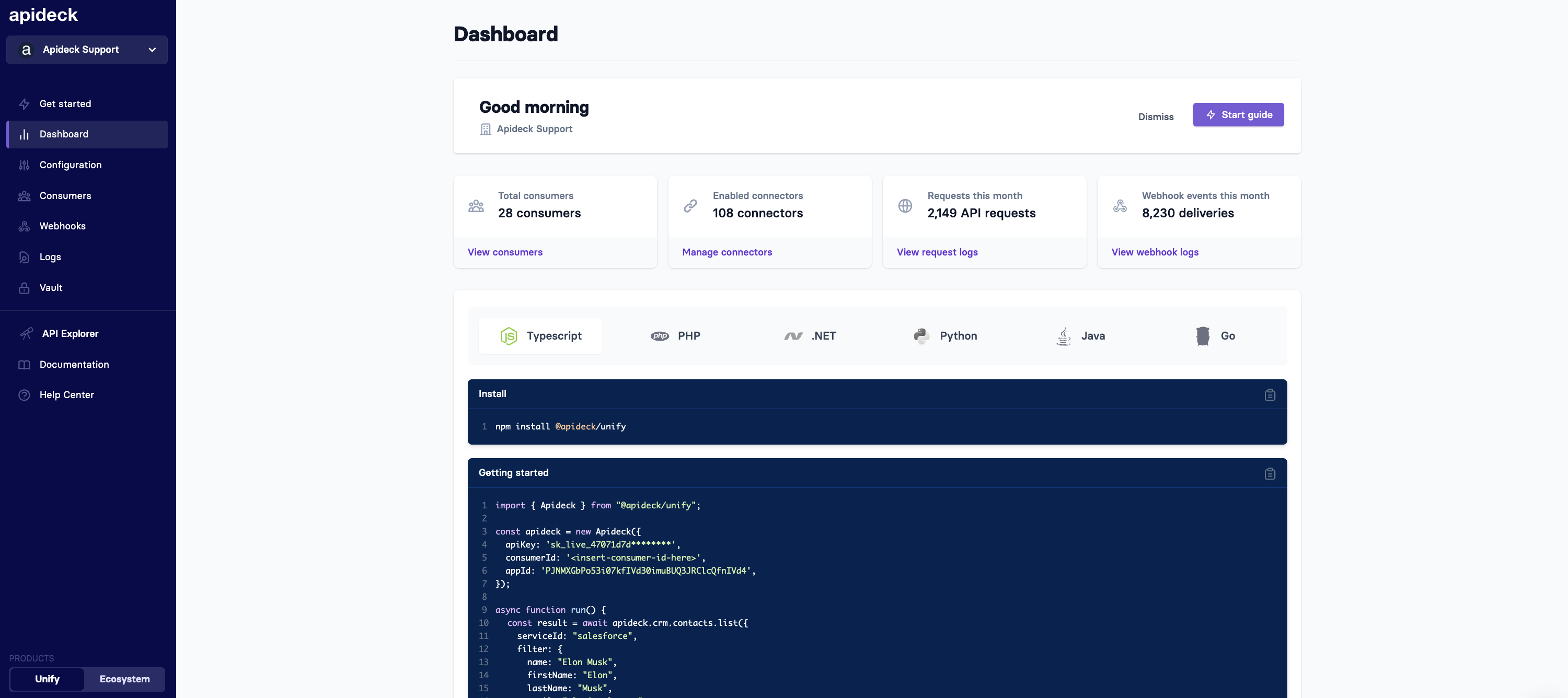
When you log in, the dashboard gives you a high-level view of your Apideck setup. The sidebar navigation takes you to every area of the platform.
Configuration
The Configuration page is where you control which Unified APIs and connectors are available to your users. From here you enable or disable Unified APIs, activate specific connectors, configure custom OAuth apps for production, and set up Custom Mappings to extend the data model.
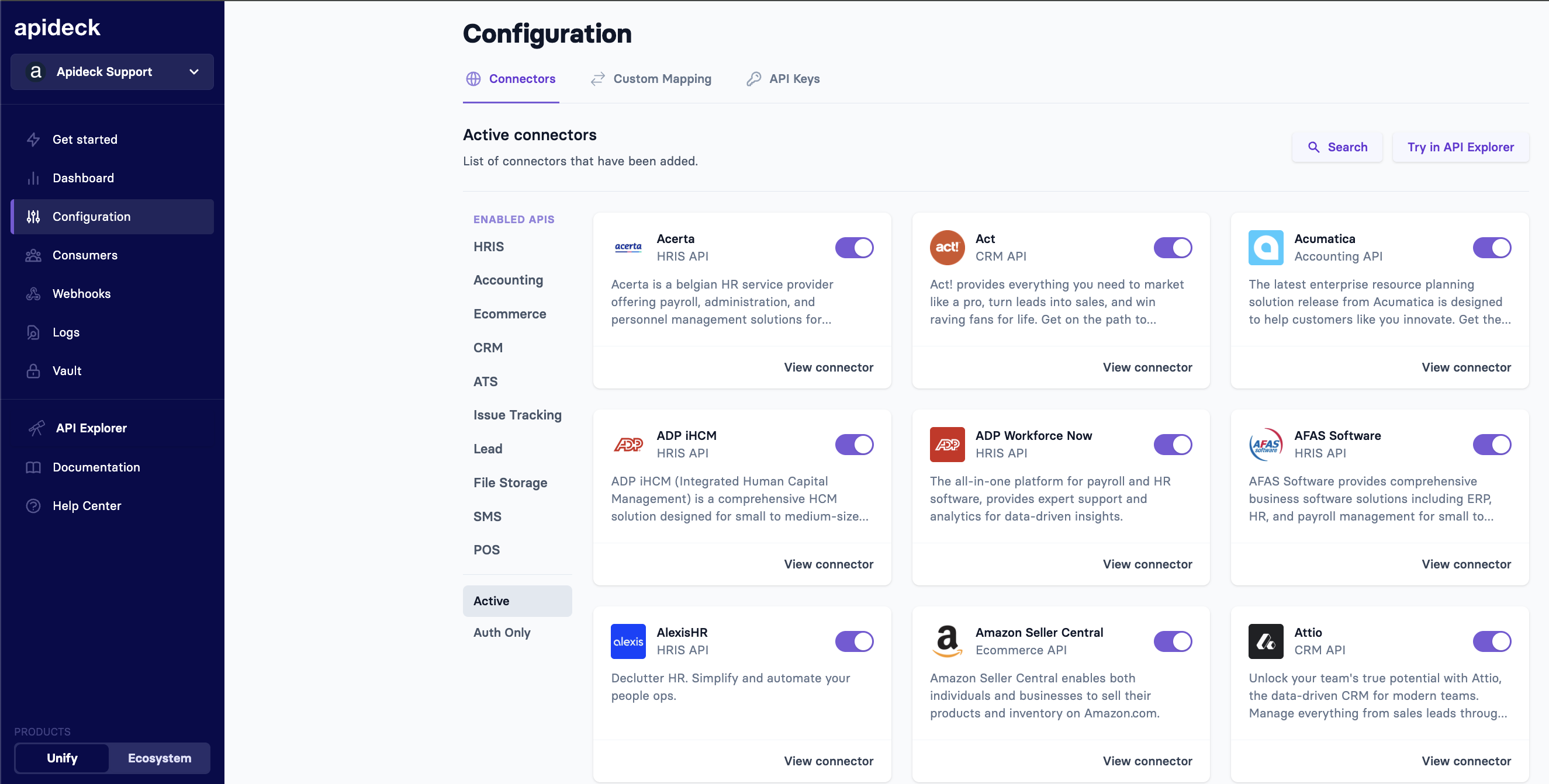
For more on managing applications and environments, see How to manage an environment or application. For field mapping guides, see the Field Mappings section.
Vault
The Vault page lets you manage your consumers and their integration connections. You can launch the Hosted Vault demo to test connection flows, view consumers and their active connections, grab the Hosted Vault URL, and customize Vault's appearance with your branding.
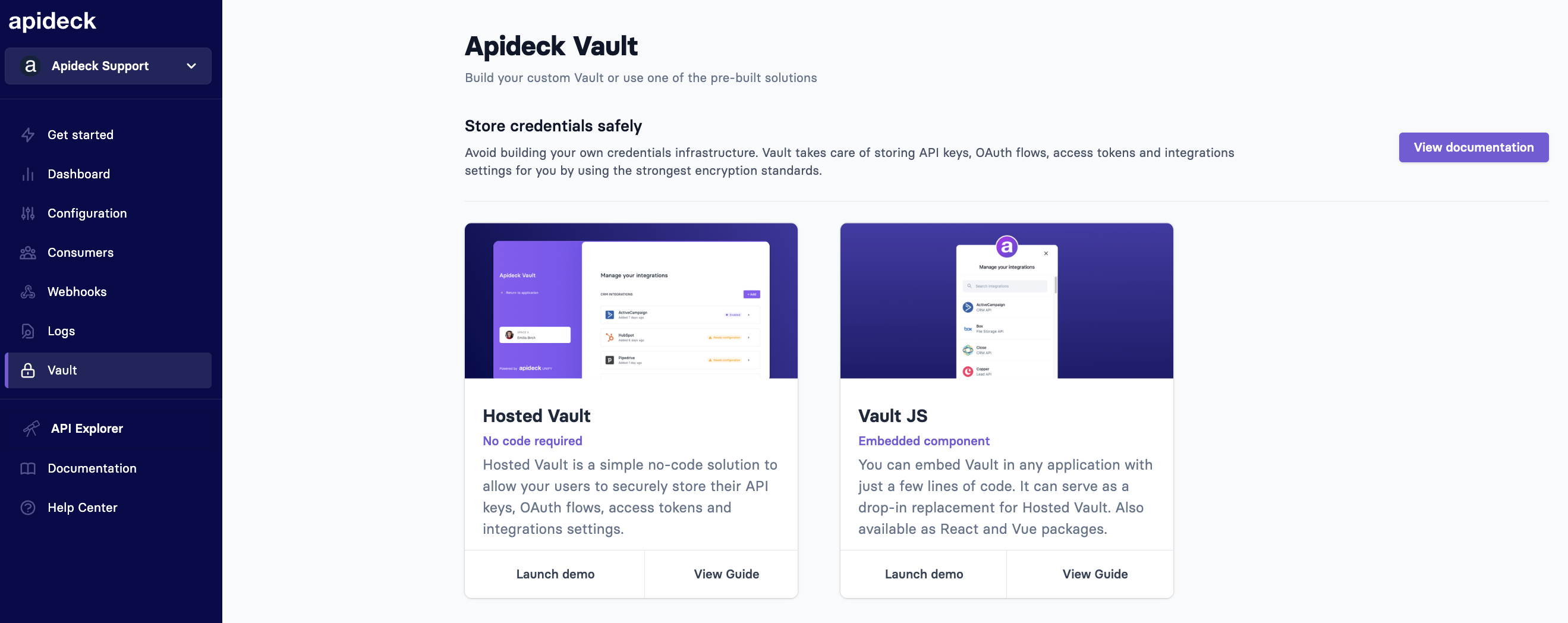
For a conceptual overview, see Understanding Vault and Authentication. For specific Vault topics like custom fields, CORS, and token management, see the Vault section.
Webhooks
The Webhooks page is where you subscribe to events - both connection lifecycle events (from the Vault API) and data change events (from Unified APIs via virtual webhooks).
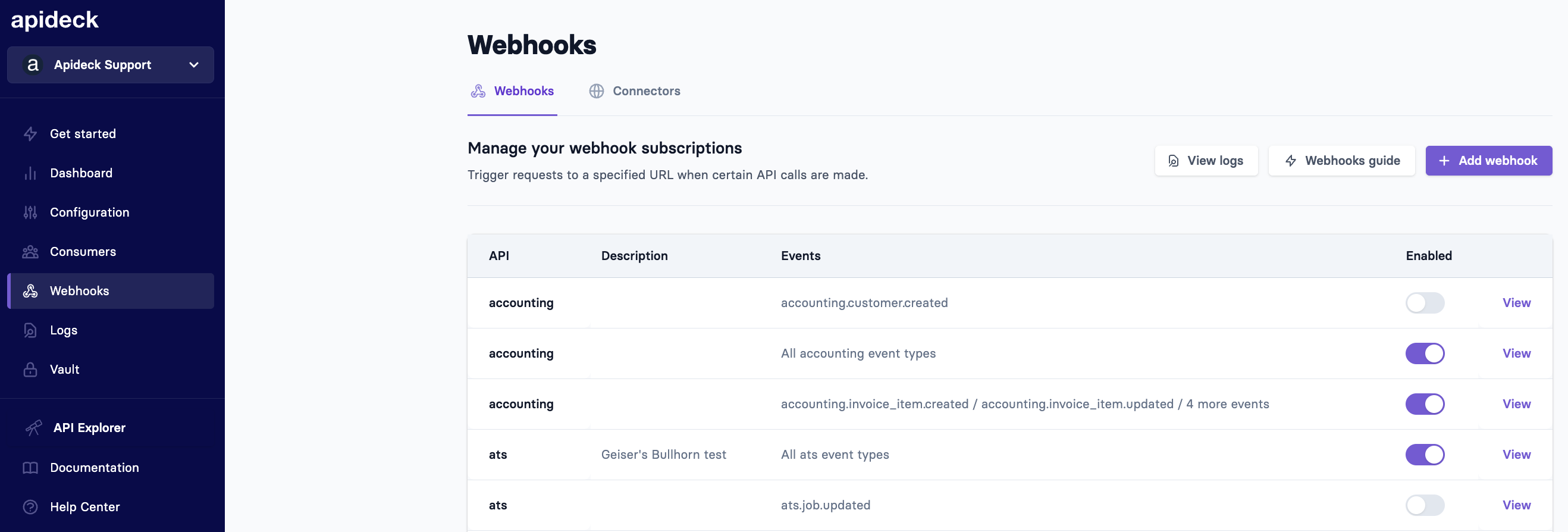
For setup guides and webhook behavior details, see the Webhooks section.
Logs
The Logs section lets you inspect individual API calls made through Apideck. For each request, you can see the full request and response, the connector it was routed to, the consumer it was made for, and the HTTP status code. This is invaluable for debugging.
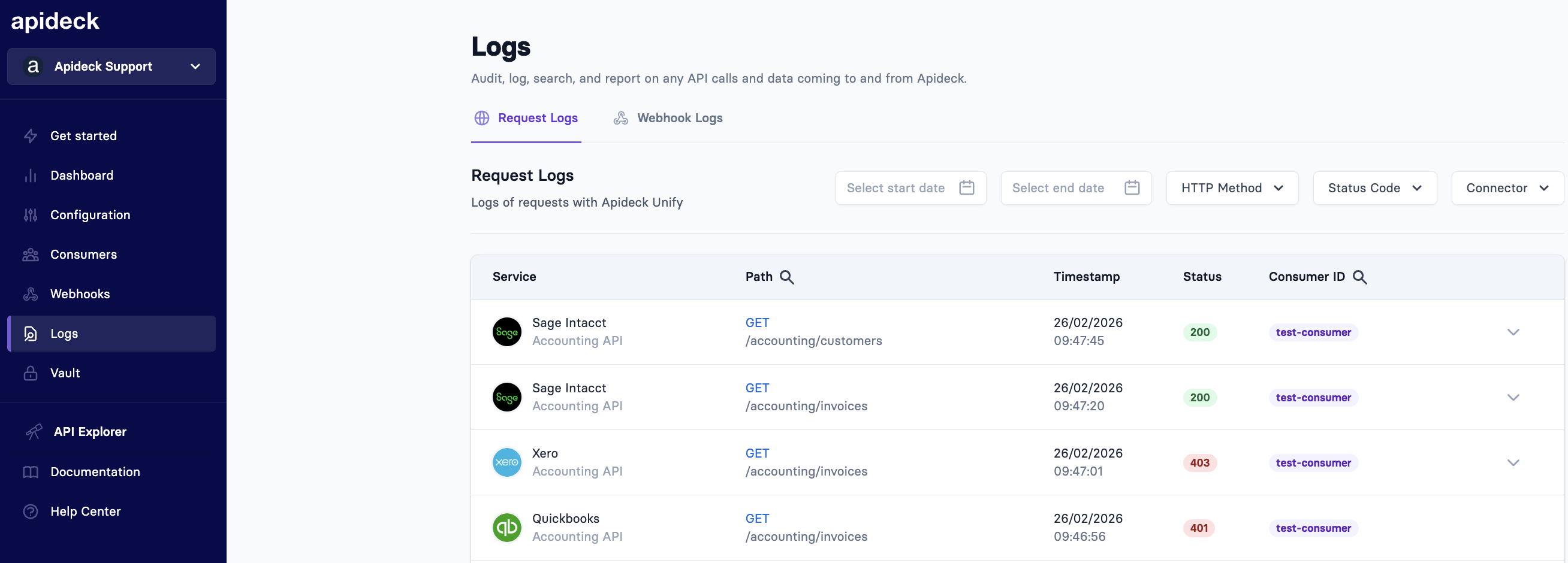
For a walkthrough on how to use logs, see How to see the log of a request.
API keys and account settings
The API Keys page is where you find your App ID and API key and can regenerate keys if needed.
The Account Management section of this help center covers the operational aspects of your account:
See the full Account Management section for all articles.
Where to go for help
Depending on what you need, Apideck has several resources:
Resource | What it's for | URL |
|---|---|---|
Help Center | How-to guides, troubleshooting, FAQs | |
Developer Docs | API references, SDKs, guides, tutorials | |
API Explorer | Interactive API testing in your browser | |
Coverage | Check supported fields and endpoints per connector | |
Changelog | Platform updates and new connectors | |
Status | Real-time system status and incidents | |
Provider status | Incidents reported by the providers behind each connector |
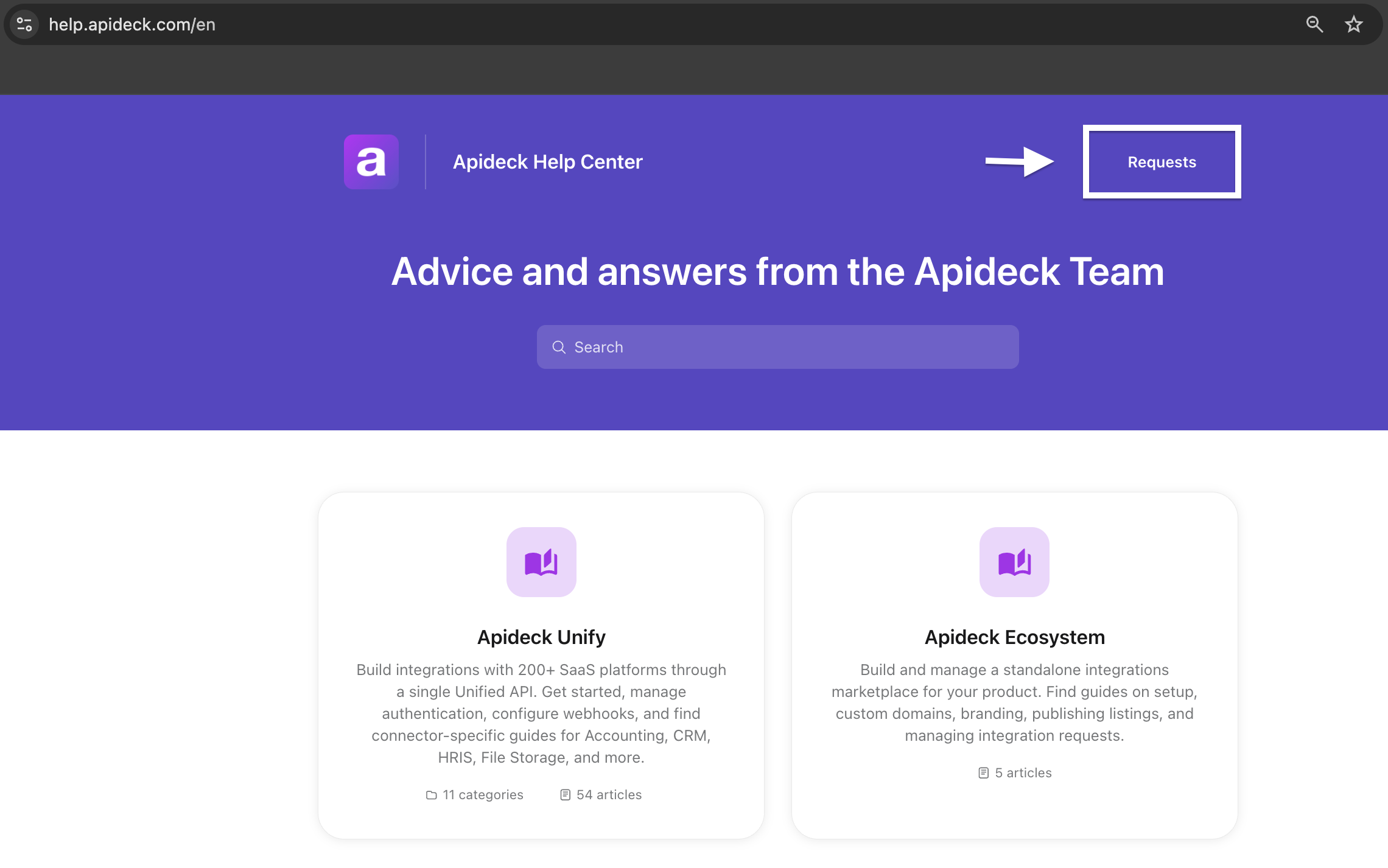
Have a question that isn't covered here? Submit a request through the Requests link at the top of this help center or reach out to us at support@apideck.com
Related resources: